iPhone Duo: what to change in your app, and in what order
Apple's first foldable is on sale, and apps built with older SDKs don't fill its inner display. This note covers how people will use iPhone Duo, what product, design, research, marketing and engineering teams should check, and the order we'd work in.
Apple's first foldable, iPhone Duo, went on sale on 23 October 2026: a 5.4-inch outer display, and a 7.6-inch inner one that opens like a book. Your app already runs on it. The real question is how your customers will use it, and whether your app is ready for that. This note isn't only for developers; it's written for product, design, research and marketing teams too.
1. One phone, four ways to use it
On iPhone Duo, the same person will use the same app in different ways during a day:
- Closed, one-handed: on the move, standing up, short tasks. Paying, checking in, answering a notification, starting a charge. The outer display is narrow and short, so iOS moves the controls to the right edge, where the thumb reaches them.
- Open, two-handed: sitting down, longer tasks. Comparing, reading, planning, going through a basket. The inner display is close to an iPad; a list and its detail fit side by side.
- Half-folded or on a table: hands-free. Video, video calls, a recipe, step-by-step instructions. The picture on the top half, controls on the bottom half.
- And everything in between: people will open and close the phone in the middle of a task. They'll want to start a payment with the phone closed and finish it with the phone open.
So design starts with tasks, not screens: which tasks will your customers do most in your app, and in which pose?
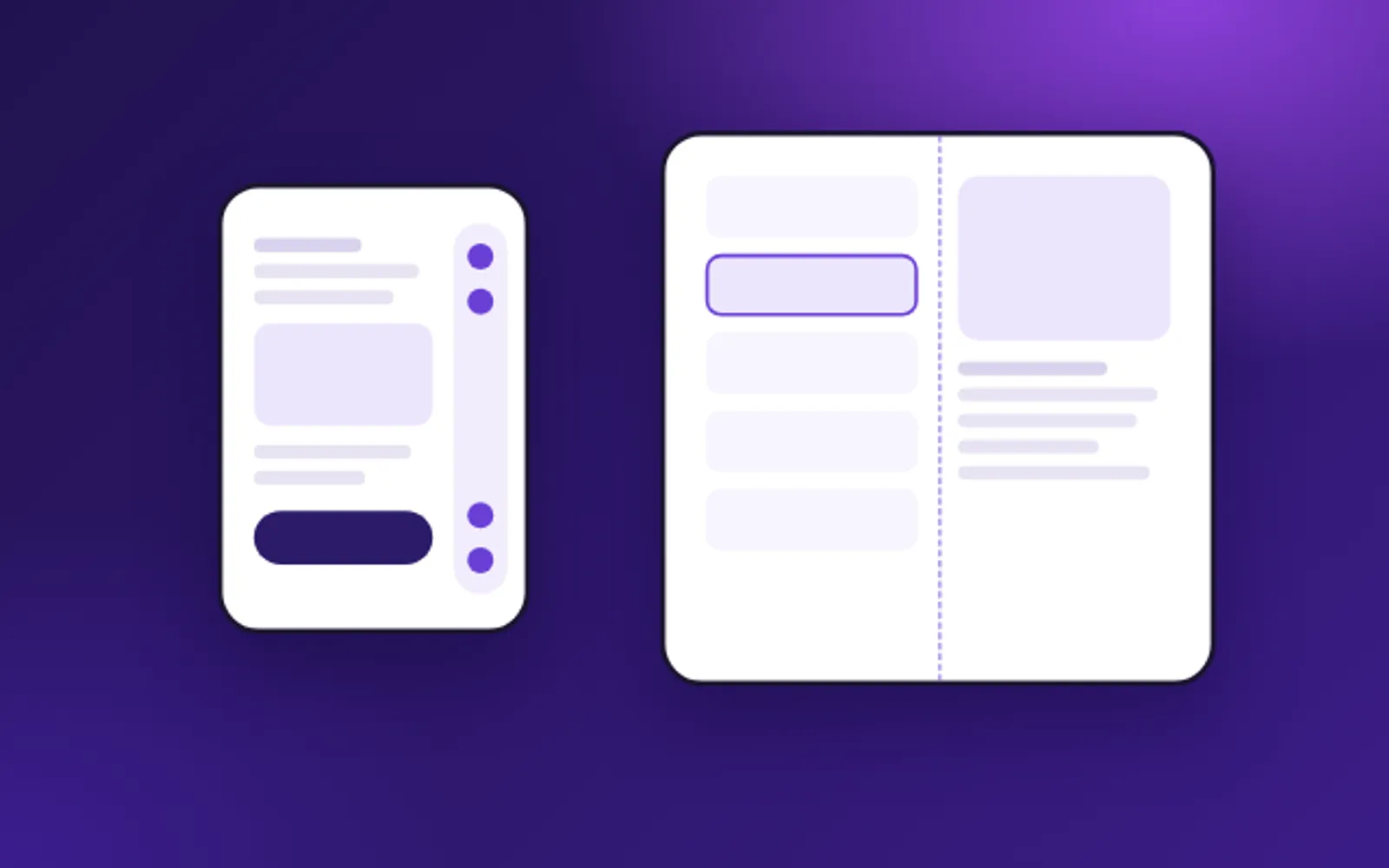
Controls on the right edge; content makes room.
Horizontal bars stay in portrait; list and detail side by side.
No buttons in the fold: text moves away, buttons go to the sides.
2. How your app looks today
Apple describes three cases, depending on the SDK the app was built with:
- The iOS 26 SDK or earlier: the app runs, but doesn't adapt to the phone. Open, it doesn't fill the inner display; it opens as a smaller window in the middle, with empty space around it. Closed, its content is pushed to the left of the status bar and the camera.
- The iOS 27 SDK: it fills most of the inner display, but keeps clear of the status bar on the right edge.
- The iOS 27.1 SDK and later: Apple calls this optimised for iPhone Duo. The app uses the whole display, and toolbars and tab bars stand vertically.
The first job takes an afternoon and puts product, design and engineering at one table. Open the app in the iPhone Duo simulator in Xcode 27.1, or on a device, go through your three most important flows in every pose, and write down what you see. That list is your plan.
3. Design: the outer display
To give content more height when the phone is closed, the controls that usually sit at the top and the bottom move to the right edge. Toolbar buttons from the top go to the top of that edge, buttons from the bottom go to the bottom, and a tab bar sits at the bottom end of the edge. Wide items, such as a text button or a segmented control, stay in the navigation bar.
Questions for the design review:
- Do the controls cover content? If the layout follows the horizontal safe area insets, content moves over on its own. Elements placed by hand stay where they are and end up under the controls.
- Is the most important action first? The status bar and Live Activities share the edge, and when there isn't room, controls collapse into an overflow menu. The button people tap most shouldn't end up in it.
- Can the task be finished with one hand? Flows on the outer display should work with a thumb: paying, signing in, confirming.
4. Design: the inner display
Opened, the app gets a regular width, the size class iPad apps have always had. Apple's advice is that the inner display should look like a natural extension of your iPad layout: a split view with a list and its detail, a layout that becomes two columns when there's room, or a sidebar instead of the tab bar in apps with a lot of information. In portrait, the familiar horizontal bars stay.
The rule that matters most: the same features and the same hierarchy in every pose. Don't hide a function on the outer display because there's less room. When someone opens the phone, they should find what they were looking for in the same place.
Check the images too. A hero image or campaign banner set to fill the frame can lose its subject on the wider inner display. Set a focal point so the important part shows on every display.
5. Design: the fold and the table
Half-open, the display curves through the centre. Apple found that buttons are hard to tap there, so iOS moves text and images away from the curve and buttons to the sides. In portrait, controls move to the lower half. System components do this on their own. If you use custom components, check that none of them lands in the fold. Scrolling content doesn't need to avoid it.
Stood on a table, the phone is used hands-free: the picture at the top, controls on the steady lower half. If your app has video, video calls or step-by-step instructions, this pose is an opportunity. If you design a special layout for it, it still needs every control the other poses have.
6. A fold happens in the middle of a task
On every other iPhone, an app's size rarely changes. On iPhone Duo it changes whenever someone opens or closes the phone, often halfway through a task. In Apple's words, reading the size once at launch "isn't enough, because a fold can resize your app in the middle of a session."
For the person using your app, this is the worst moment. A half-filled form, a basket, a card number being typed, the place in a video or the position on a map can disappear at once. A payment form that empties itself when the phone opens is the kind of bug store reviews mention first. Folding and unfolding in the middle of each important flow should be the first item on your test list.
7. Research and measurement
- Testing with real users: set tasks that need a change of pose, such as "Start the payment with the phone closed and finish it with the phone open." Watch where people open the phone, whether they find the controls on the edge, and whether they lose their way when it opens.
- Analytics: have the app send an event when its size class changes. You'll see how many people use the inner display, in which flows they open the phone, and whether anyone drops a flow at the moment they fold or unfold.
- Store reviews: over the coming weeks, watch for reviews that mention folding, opening or Duo. The first problems will show up there.
8. Marketing and the App Store
- Screenshots: add iPhone Duo screenshots in App Store Connect. They put a badge on your product page.
- Featuring: you can nominate the app for featuring in App Store Connect. Apple suggests saying in the nomination that the app is optimised for iPhone Duo, with support for all device poses.
- Campaigns: in-app banners, campaign pages and videos should look right on both displays. A campaign visual cropped on the inner display loses half its message.
9. Engineering
Apple lists the code patterns that break on iPhone Duo. In Xcode you can ask the coding assistant to "get my app ready for iPhone Duo"; it scans for them and suggests fixes. It doesn't catch everything, so go through the list as well:
- `UIScreen.main`: take the size from the view or the window instead (`view.bounds`, `window.bounds`; in SwiftUI, `GeometryReader` or `onGeometryChange`), and create windows from a scene.
- A size read once: do size-dependent layout in `viewDidLayoutSubviews` or `layoutSubviews`, and put work that must run on a resize in `viewWillTransition(to:with:)`.
- Orientation: the device's orientation no longer tells you the app's shape. Compare the width and height you actually have.
- Guessing the device: a regular width no longer means iPad, and an iPhone isn't always compact. Remove fixed device sizes such as `bounds.height == 844`.
If you use React Native or Flutter, the rule is the same: read the window's size, not the device's, and lay out again whenever it changes.
To test, use the resizable simulator in Device Hub, iPhone Mirroring on macOS 27 and the iPhone Duo simulator in Xcode 27.1. The test list should cover your key flows in every pose (closed, open in portrait and in landscape, half-folded, on a table), a fold in the middle of each flow, and Split View, where two apps share the inner display.
The order we'd work in
Here is the order, with which team comes in when:
- This week, product, design and engineering together: run the app in every pose and list what breaks: cropped content, stretched layouts, controls under the side strip, data lost when the phone opens.
- The next sprint, engineering: fix the size and orientation code, build with the iOS 27.1 SDK, and make sure data survives the phone opening and closing.
- Then, design and research: design the inner display for your most used screens, and run user tests with tasks that include a change of pose.
- At the same time, product: add the size class event to your analytics. Don't start a big redesign before you know how much the inner display is used.
- Last, marketing: add the screenshots, nominate the app for featuring, and check campaign visuals on both displays.
Always put the one-handed tasks on the closed phone first: paying, signing in, checking in, starting a charge. Browsing, comparing and reading gain the most from the inner display; they come second.
And your website?
Safari runs on both displays, and in Split View it can sit next to another app. A site built on fluid layouts adapts. One that switches between a phone design and a tablet design at fixed device widths may end up showing the wrong one. Open your key pages on both displays and in Split View before your customers do.
How we can help
A PX-RAY Scan takes three days. We go through your app's key flows in every iPhone Duo pose in the simulator and give you the ten fixes that matter most, ranked. If the inner display needs a new layout, we design and build it. Details are on the PX-RAY page.
A short call, and we'll tell you honestly where you stand and what the first step should be.